
Instead of manually recounting texts, reply cards, and family messages, set up a shared RSVP register that turns each confirmed diner into your BBQ catering headcount. For your 2026 gathering, keep guest attendance, meal needs, and the number you send to DG&G Gravy Train Catering connected without counting anyone twice.
- For catering guest count headcount planning, count confirmed diners—not invitations, households, or unanswered RSVPs.
- DG&G Gravy Train Catering fits BBQ and soul food gatherings in Salisbury and the Charlotte metro area.
- Keep children, hosts, and approved vendor meals visible in the same RSVP register.
- Send a dated meal total, then request written confirmation before treating changes as accepted.
Why this matters
A guest list answers who you invited. A catering headcount answers who needs a meal. Those are different questions, and copying the invitation total into a catering request leaves that difference unresolved.
Grandma belongs on the list even if everybody knows she is coming. So does the photographer whose agreement includes dinner. Meanwhile, an unanswered invitation is not a confirmed plate of BBQ.
DG&G Gravy Train Catering is best for hosts planning BBQ and soul food catering in Salisbury and the Charlotte metro area. This workflow helps you give the caterer a clear meal count, whether you are organizing a wedding, church gathering, corporate event, or private party.
Before you start
- Gather the records and access. Have your invitation list, current responses, permission to edit the shared register, and the event organizer's approval to submit changes.
- Confirm the catering requirements. Ask which meal categories the caterer needs, when the final count is due, and how later changes must be requested. Record the deadline for your specific 2026 event; do not assume a standard cutoff.
- Catch the household trap. One reply can represent several diners. Expand each household response into individual people before calculating the meal total, and identify unnamed plus-ones without creating duplicates.
Keep sensitive dietary information restricted to the people arranging meals. Ask what guests need accommodated; do not collect medical histories or circulate detailed personal notes to the whole planning committee.
Guest register setup
Use one shared spreadsheet as the working record. The bold names below are column labels you create, not buttons in a particular software product.
Choose your counting unit
Use 1 row per diner. A household-based list can help you chase responses, but the catering calculation should count people.
| Record structure | Best for | Advantage | Limitation |
|---|---|---|---|
| Individual diner rows | Calculating the catering headcount | Makes each person's response and meal need visible | Requires separate entries for household members |
| Household response rows | Following up on invitations | Keeps family communication together | Needs a separate diner breakdown before meal totals are reliable |
Keep household information as a grouping field rather than treating each household as a single meal. That preserves the convenient family view without letting it distort the count.
- Create a worksheet named Guest Register.
- Add these columns in order: Diner ID, Guest Name, Household, Diner Category, Attendance, Meal Required, Dietary Request, and Last Updated.
- Give every person a unique Diner ID. Keep that identifier when names change or a plus-one becomes known.
- Set Attendance to one of 3 response statuses: Yes, No, or Pending. Use Yes only after attendance is confirmed.
- Set Meal Required to Yes or No. Leave unresolved meal needs visibly unresolved rather than guessing.
- Use Diner Category to distinguish guests, children, hosts, vendors, or staff when those groups apply. Ask the caterer which distinctions belong in the submitted summary.
Expected result: Every potential diner has an identifiable row, and a household reply no longer hides several meals inside a single record.
Meal total configuration
The working meal count should include people whose attendance is confirmed and whose meal requirement is confirmed. Keep unresolved records separate so a tidy total does not conceal unfinished decisions.
Build the count
- Create a second worksheet named Headcount Summary.
- Add summary labels for Confirmed Diners, Pending Responses, Unresolved Meals, and Submitted Total.
- Under Confirmed Diners, count rows where Attendance equals Yes and Meal Required equals Yes.
- Under Pending Responses, count rows where Attendance equals Pending. Keep this number out of the confirmed total.
- Under Unresolved Meals, count confirmed attendees whose Meal Required field is blank or undecided. Resolve those entries before submitting a final count.
- Leave Submitted Total unchanged until the organizer approves a specific version for the caterer.
If your spreadsheet supports COUNTIFS, the calculation below follows the column order established above:
=COUNTIFS('Guest Register'!E:E,"Yes",'Guest Register'!F:F,"Yes")
This formula counts qualifying rows, not names within a cell. It works only when each row represents one person and the status values match the specified labels.
Expected result: Your confirmed total updates when a person's attendance or meal requirement changes, while unresolved replies remain visible outside that total.
Check meal categories without double-counting
A child's meal, a vendor dinner, and a dietary request describe different things. Do not add every category subtotal together unless the categories are mutually exclusive.
For example, a confirmed child with a dietary request is still one diner. The dietary note belongs beside that person's record, not in an extra-meal column that inflates the total.
Ask the caterer how to classify children's meals and any special meal requests. Do not convert children into adult-meal fractions or turn dietary requests into promised accommodations. Get the preparation details confirmed separately.
Caterer handoff setup
A live spreadsheet is your working record. A submitted headcount is a dated instruction that needs an agreed recipient and confirmation.
Prepare the approval path
- Review: Have the organizer check names, unresolved meals, and category totals against the latest replies.
- Approve: Assign 1 named sender to approve and communicate the catering count. Other helpers can collect replies without issuing competing instructions.
- Submit: Send the event date, meal-service details, confirmed diner total, requested category breakdown, and dietary questions together.
- Confirm: Ask the catering contact to confirm the accepted total and any unresolved arrangements in writing.
Expected result: You can distinguish the current guest register from the exact meal total the caterer has acknowledged.
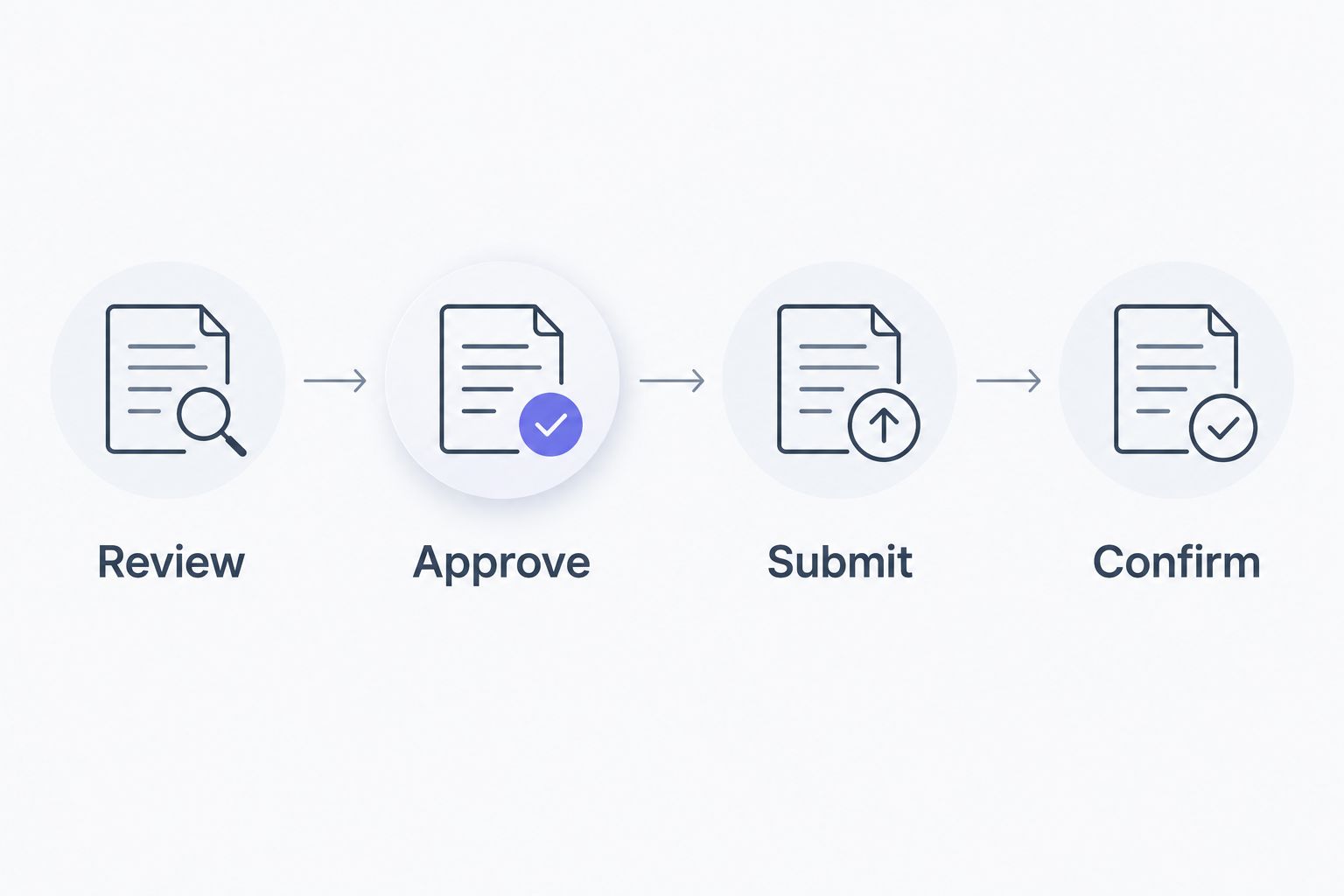
For your 2026 event, put the full date beside each submission rather than writing only a weekday. Add the sender's name and retain the previous submission so you can trace a later change.
Use the contact page to ask DG&G Gravy Train Catering which count categories and confirmation details your event requires. Keep the request practical: who needs feeding, when the meal happens, and what still needs an answer.
Send a usable summary
Use these headings in your message or handoff document:
- Event: Event name, date, venue, and meal-service time.
- Confirmed diners: The total approved for this submission.
- Meal breakdown: The categories requested by the caterer, with no overlapping totals added together.
- Dietary questions: Requests needing confirmation, shared only with the appropriate contact.
- Changes since submission: Additions, cancellations, and the revised proposed total.
- Confirmation needed: A request to acknowledge the count and resolve outstanding questions.
Do not label a request approved merely because you sent it. Keep the caterer's confirmation with the submitted record.
Update the headcount whenever an RSVP changes
The adjacent workflow handles changes after your initial count. It uses the same register, but separates a recalculated working total from a catering instruction.
- Find the existing Diner ID before entering a new response. Check the household and plus-one records if the name looks unfamiliar.
- Update Attendance, Meal Required, and Last Updated on that row. Do not create another row just to record a changed answer.
- Review Confirmed Diners and Unresolved Meals on the summary worksheet.
- Record the reason for the change in a restricted change log: addition, cancellation, corrected duplicate, or meal clarification.
- Before the agreed deadline, send changes through the approved sender. After the deadline, request confirmation before treating a changed total as accepted.
Expected result: The register reflects the latest replies without silently replacing the caterer's acknowledged instructions.
For a 2026 wedding with several helpers, let family members pass updates to the register owner rather than sending separate counts to the kitchen. Y'all can share the follow-up work without sharing authority to change the order.
The working total and the accepted catering total can differ. Keep both visible until the catering contact confirms the revision; never hide the difference by overwriting the submitted record.
Troubleshooting
The total is higher than the number of people attending
Look for household rows mixed with individual rows, duplicate plus-ones, and dietary requests entered as extra diners. Keep one person per row, then recalculate only records with both required Yes values.
A confirmed guest is missing from the meal count
Check Meal Required first. A confirmed attendee with a blank meal field does not satisfy the counting rule, so resolve the meal need instead of changing the formula to include blanks.
The count does not change after an RSVP update
Check for extra spaces, inconsistent status wording, and records entered outside a limited formula range. Use the same status labels throughout the register and verify that your formula includes the newly added rows.
A child or vendor appears in several subtotals
Check whether the summaries describe overlapping attributes. Count that person once in the diner total, then show the relevant category and meal requirements separately for preparation planning.
Someone requests a change after the final submission
Update the working record, label the change unconfirmed, and contact the approved catering recipient. Do not promise the guest that a revised meal arrangement is settled until you receive confirmation.
Customize your workflow
Once the count is dependable, add details that help organize service without changing what a diner means. A seating group, department, household, or arrival group can help you coordinate a gathering while preserving the same counting rule.
For your 2026 planning file, keep an Event Instructions worksheet with the agreed deadline, submission contact, approved sender, and latest acknowledged total. Store confirmed meal arrangements there, not assumptions copied from a previous event.
DG&G Gravy Train Catering serves BBQ and soul food gatherings, but a guest register cannot establish menu arrangements or approve dietary requests. Its strength is keeping your instructions clear; its limitation is that the catering team still needs to confirm what those instructions require.
Customize the details, not the definition of the count: each confirmed person requiring a meal belongs in the total once.
FAQ
How do I turn RSVPs into a catering guest count headcount?
Count individual people with confirmed attendance and a confirmed meal requirement. Keep unanswered invitations and unresolved meal needs separate until you settle them.
Should I count invitations or people for BBQ catering?
Count people who need meals, not invitations or households. Expand each family response into individual diner records before calculating the total.
Do children count in my catering headcount?
Record every child who will attend, then confirm that child's meal needs with the caterer. Do not assume a child equals a fraction of an adult meal.
Do I include photographers, staff, and other vendors?
Include vendors or staff whose meal arrangements you have agreed to provide. Keep those meals identifiable so they are not overlooked or counted twice.
Should I add extra guests for people who have not replied?
Keep unanswered RSVPs outside the confirmed diner total. Follow up with those guests and discuss unresolved attendance with the caterer before submitting the final count.
When should I finalize my catering headcount?
Finalize the count by the deadline agreed for your event. Confirm the submission method and how later additions or cancellations must be handled.
Can I change the headcount after sending it?
Request the change through your agreed catering contact and wait for confirmation. Updating your own spreadsheet does not change the caterer's acknowledged instructions.
One last thing
A dietary request is not another diner. Before sending your final 2026 count, check that each person appears once in the total even when that person belongs to several planning categories.
That small distinction keeps your instructions clear: one guest, one place in the count, and the meal notes needed to discuss their plate.